There’s a frustrating moment every student with a smartphone eventually experiences.
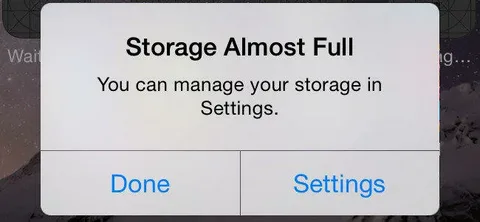
You’re trying to download an important PDF, save a video from your online class, or receive a file from a lecturer, and suddenly your phone says:
“Storage almost full.”
You delete a few pictures, but the warning comes back.
You remove an app you barely use, but somehow you still don’t have enough space.
I’ve been in that situation, and one thing I learned is that simply deleting random files isn’t always the best solution. Sometimes you need to find out what is actually taking up your storage.
If you’re using your phone for school, college, or university work, here’s how I’d go about freeing up space without accidentally deleting something important.
1. I Checked What Was Taking Up the Space
The first thing I’d do is check the phone’s storage settings.
On most Android phones, you can find this under something like:
Settings → Storage
The exact wording can vary depending on your phone.
On an iPhone, you can usually find the information under:
Settings → General → iPhone Storage
The important thing isn’t the exact menu.
You want to see a breakdown of what’s using your storage.
You may discover that your photos are taking up most of the space.
Or perhaps videos.
Maybe it’s WhatsApp or another messaging app.
You might even find several large apps that you completely forgot you had installed.
Once you know what’s responsible, you can deal with the actual problem instead of deleting things randomly.
2. I Looked at My Videos First
Videos can consume storage incredibly quickly.
A few long videos from a school event, lecture, or downloaded course can take up hundreds of megabytes—or much more.
So if your storage is nearly full, I’d check videos before worrying about small files.
Look through your gallery and ask yourself:
Do I really need this video on my phone?
If it’s something important, back it up first.
You can move it to your computer, external storage, or a cloud-storage service.
Once you’ve confirmed the backup works, you can remove the local copy from your phone.
This can free up a surprising amount of space.
3. I Checked WhatsApp Media
For many people, messaging apps quietly become one of the biggest storage problems.
Think about all the photos, videos, documents, voice notes, and forwarded files you’ve received.
You may have files sitting on your phone that you haven’t looked at in months.
Open WhatsApp’s storage management section and look at which chats are using the most space.
You don’t have to delete entire conversations.
Instead, look for large videos and unnecessary files.
Be careful before deleting anything, though. A file that looks unimportant could be something you actually need for school.
If a lecturer sent you an important PDF or assignment document through WhatsApp, save it somewhere else before removing it.
4. I Cleaned Up My Downloads Folder
The Downloads folder is another place where files tend to disappear and be forgotten.
You might have:
- Old PDF textbooks
- Assignment instructions
- Duplicate documents
- Installation files
- Screenshots
- Images
- ZIP files
- Random documents you’ve downloaded once
Go through the folder carefully.
If you haven’t opened a file in months and you know you don’t need it, it may be safe to remove.
For important school documents, I’d create folders such as:
School → 2026 → Mathematics
or:
University → First Semester → Assignments
A little organization makes it much easier to know what you can safely delete later.
5. I Deleted Apps I Don’t Use
Apps can take up more space than you might expect.
Look through your installed applications.
If you have a game you haven’t opened in six months, an editing app you tried once, or several shopping apps you rarely use, consider uninstalling them.
You don’t have to permanently lose access to the service.
If the app is available through the app store, you can usually install it again later if you actually need it.
I would focus on apps that are both large and rarely used.
6. I Was Careful With “Clear Data”
This is where I’d tell you to slow down.
Android phones may show options such as Clear cache and Clear storage/data.
They’re not the same thing.
Clearing a cache generally removes temporary files.
Clearing an app’s storage/data can remove information associated with the app and may sign you out or reset it.
So don’t press buttons simply because you’re trying to free up space.
Read what the phone is telling you first.
If you’re unsure about what an option does, check the manufacturer’s documentation or the app’s support information before proceeding.
7. I Backed Up Important School Files
Before doing a serious cleanup, I’d make a backup.
This is especially important for students because your phone may contain months of notes, assignments, scanned documents, and other important material.
Imagine deleting your entire gallery and realizing afterward that your photos of handwritten lecture notes were never backed up.
That’s a painful lesson.
Use a computer, cloud storage, or another reliable backup method.
And don’t assume something is backed up simply because it appears in an app.
Actually check that you can access the files from somewhere else.
8. I Looked for Duplicate Files
Sometimes you have several copies of the same document.
Maybe you downloaded the same PDF three times.
Maybe someone sent the same lecture notes through several WhatsApp groups.
Maybe you’ve saved multiple copies of the same photo.
Duplicate files can gradually eat into your storage.
Some phones have built-in tools for identifying unnecessary or duplicate files. If yours does, review the suggestions carefully before deleting anything.
Don’t automatically trust a “clean everything” button.
9. I Didn’t Delete Everything Just to See the Storage Number Drop
This is important.
Having a completely empty phone isn’t the goal.
The goal is having enough free space to use your phone comfortably and store the things you actually need.
If you have old family photos, important school documents, or personal files that matter to you, don’t delete them simply because they’re taking up space.
Back them up instead.
Storage management should be about moving and organizing important files, not simply destroying them.
10. I Created a Simple Rule for New Files
Once you’ve freed up space, the next challenge is keeping it that way.
Otherwise, you’ll be back at the same storage warning a few months later.
I’d create a simple habit.
Whenever I download a large school file, I ask:
Do I need this on my phone permanently?
If the answer is no, I can remove it when I’m finished.
For important documents, I’d keep a properly organized copy somewhere else.
I also try not to let hundreds of unnecessary photos and videos accumulate.
It only takes a few minutes to clean things up regularly.
What If Your Storage Is Still Full?
If you’ve removed unnecessary files and your phone still reports that storage is nearly full, there may be another explanation.
Your phone’s system itself requires storage.
Some apps also create large amounts of cached or temporary data.
On some devices, the available storage may simply be limited.
If you’re constantly running out of space despite regular cleanup, it might be worth considering a phone with more storage when you eventually upgrade.
But don’t assume you need a new phone immediately.
A proper storage cleanup can often recover a significant amount of space.
Final Thoughts
Running out of phone storage is especially annoying when you need the device for school.
You shouldn’t have to delete an important assignment just to download another PDF.
The best approach I’ve found is to stop guessing and check what’s actually consuming your storage.
Look at your videos, WhatsApp media, downloads, unused apps, and duplicate files.
Back up important material before deleting anything, and organize school documents so you can find them easily later.
Most importantly, don’t use aggressive cleaning tools without understanding what they’re going to remove.
A few minutes of careful organization can turn a phone that’s constantly complaining about storage into one that has plenty of room for the files you actually need.